FYI: I am on a Windows PC.
For a certain project I had to alter a lot of image files, and I needed to keep track of what I was doing – in a spreadsheet. The thought of copy/pasting all the files names into that spreadsheet was not very appealing to me; it would entail these actions:
- Right-click on the file name
- Select “Rename”
- Clicking in the rename field to also include the file extension
(only the name is editable now, not the extension – like .pdf, .jpg, .doc etc.) - Select CTRL+C to copy
- Going to the spreadsheet
- CTRL+V to paste the file name into the appropriate cell
Especially since there were a lot of files, this seemed to spell Repetitive Strain Injury (RSI) to me… (what is that?)
Surely there had to be a way to create a list of all the file names in a certain directory?
…so I did some digging, using Google.
I found a page describing what I needed, and I will describe the steps for my own archiving needs – and maybe it’ll help you as well!
(See screenshots below)
- Open up the Command Prompt – on my Windows 7 machine that would be under:
- Start button >
- All Programs >
- Accessories >
- Control Prompt
- Go to the folder that you want the files list for:
- Use “cd” for “change directory”
- Move deeper into the directory that you’re in: use “cd new-folder
- Move one folder up (closer to the root): use “cd ..”
- If you need to go to another drive, just type the drive letter and a colon, e.g. “F:”
- Create the list by typing the command “dir > files.txt”
- This will create a text file called files.txt, containing all the folder information – including file names and sizes.
- It doesn’t have to be files.txt; name it whatever you want, as long as it is a .txt file.
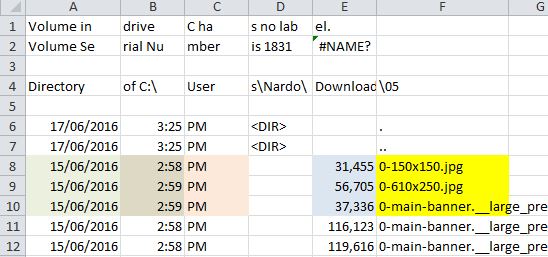
- This will be a plain text file. Not very handy in a spreadsheet, as all information shows in the one column. In order to use the file names in a spreadsheet, in a dedicated column, I had to save the file as a Tab Delimited file. So I opened up the files.txt file into Excel, click the “Finish” button in the pop-up – and voila: all information in separate columns, ready for manipulation.
My fingers and wrists are happy! This saved me a whole lot of copy/pasting.
Some screenshots:
Finding the Command Prompt:

Working with the Command Prompt:

Opening the .txt file and converting it into Tab Delimited

The end result: all information in separate cells, so you can sort, filter, colour them! 😎